




Finder's team scoured through dozens of product pages and store listings to find the best webcams available right here in Australia. We read through hundreds of customer reviews and checked out the in-depth specifications of each product to pick out the most suitable options so you can be confident when you go to buy your new webcam for meetings, streams and anything in between.
Handpicked deals, direct to your inbox
Subscribe to the Finder Shopping newsletter for the latest shopping and travel deals
Error placeholder Click here to sign in
Read more detail on our methodology below.
Logitech C922 Pro Stream Webcam
Best overall webcam




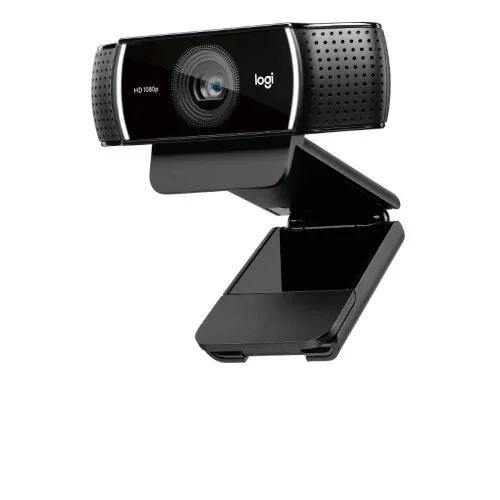
Image: Supplied/Finder
Pros
- Great image quality
- Good in low-light situations
Cons
- 60fps only available at 720p
- No swivel capability
Buy now
The Logitech C922 Pro retains its spot at the top of the heap even though it's an older unit, and it's not hard to see why.
Reviewers praised it for hitting all the right notes in terms of value for money and feature set, making it the ideal webcam for most general uses. That covers a wide swathe of needs these days, with suitability for everything from those vital work-from-home meetings through to hosting your latest game streaming session online.
Where the C922 wins its spot is in overall image quality – and let's face it, you're buying a new webcam because the image quality on your laptop webcam is pretty rubbish, aren't you? Reviews noted that it performed well at both 720p and 1080p resolutions in a variety of situations, including low-light settings. That's important if you can't bring in any additional light where you're streaming or meeting from.
The C922 Pro is 1080p-capable, which gives you a solid boost in image quality… with a slight catch. The webcam is capable of up to 60fps (frames per second) capture, but only with its lower 720p resolution setting. There's a tradeoff here – if you want that silky-smooth refresh rate, you've got to do so at a lower resolution – or you can pump it up if what you need only requires 30fps instead.
Today's Logitech C922 Pro Stream Webcam deals


41% off Logitech C922 Pro Stream Webcam
41% off Logitech C922 Pro Stream Webcam

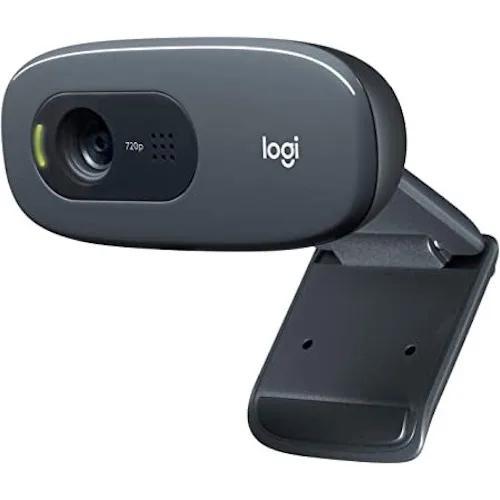
Image: Supplied/Finder
Pros
- It’s really cheap for a brand-name webcam
- Good microphone pickup
Cons
- Lacks autofocus
- 720p only
Buy now
When you're working on a budget for tech gear, it's quite common to see lesser-known (or completely unknown) brand names dominate the space. You're always taking a gamble that way because there's a lot of tech trash out there.
That's not the story for the Logitech C310, a surprisingly affordable webcam from a major brand name. That's largely because it is an older model now. Still, if your budget is seriously constrained and you just need the basics, the Logitech C310 will give you a lot to work with.
Reviewers were drawn in by its attractive price point and the fact that it delivered good quality 720p images with automatic light correction and very good microphone pickup. That could make it a good match for folks who suddenly need to work from home, as it should be quite capable of keeping the boss happy during those endless Zoom meetings. It's a notable step up from our previous winner in this category, the Logitech C270.
So what's not to like? This is a cheap webcam built cheap, and that means you don't get fancy features like fast refresh rates or 1080p quality to speak of. There's no tripod, no autofocus and it won't rotate to allow for portrait mode video if that's important to you. But what's important here really is the price. If you want a truly inexpensive but still good webcam, the Logitech C310 should not be overlooked.
Today's Logitech C310 deals
61% off Logitech C310
23% off Logitech C310

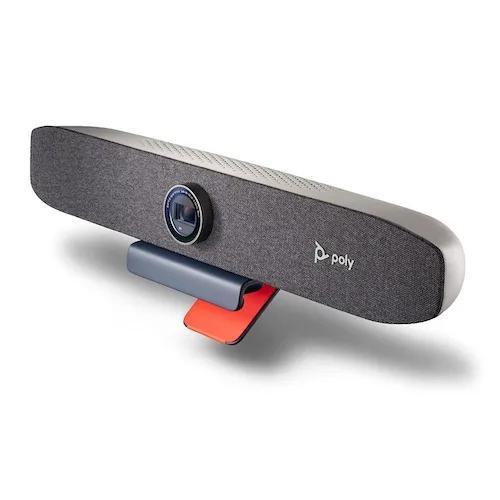
Image: Supplied/Finder
Pros
- Has all the bells and whistles
- Good 4K video quality
Cons
- Pricey
- It’s huge compared to many webcams
Buy now
They don't call the Poly Studio P15 Personal Video Bar that because it's secretly stocked with alcohol – although at its size, it's not out of the realm of possibility.
This is a serious video conferencing solution designed for work professionals who want everything integrated into a single unit. That means you not only get a 4K-capable webcam, but also a high-quality speaker and microphone unit built in as well. It's even got its own USB ports onboard.
Reviewers were impressed by its general quality for all kinds of business videoconferencing needs and its wide compatibility with high-end applications including Microsoft Teams and Zoom. They also broadly liked the included Poly Lens application, which lets you fine-tune your video experience.
In the minus column, the biggest drawback to the Poly Studio P15 Personal Video Bar has to be the asking price. This is a serious business tool with a serious price. The other catch is that it's big, entirely unsuitable according to several reviewers for mounting on any laptop screen, so it's best suited to those who work from home using an external monitor.
.fsd-deal-image-container {
max-width: 150px;
background-color: white;
margin: auto;
}
.fsd-deal-item {
border-bottom: 1px solid #d5d9dc;
padding: 1rem 0;
flex-wrap: wrap;
}
.fsd-deal-text-container {
display: flex;
flex-direction: column;
justify-content: flex-start;
padding: 0.75rem 0.75rem 0.5rem;
}
.fsd-deal-category-text {
display: flex;
gap: 0.5rem;
font-size: .9rem;
text-transform: uppercase;
font-weight: 600;
margin-bottom: 0.5rem;
}
.fsd-deal-title {
font-size: 1.5625rem;
line-height: 1.75rem;
margin-bottom: 0.5rem;
font-weight: 600;
}
.fsd-deal-description {
color: #242a2f;
font-size: 1.25rem;
}
.fsd-deal-cta-container {
padding: 0.75rem 0.75rem 0.5rem;
align-items: center;
display: flex;
}
.fsd-deal-button {
width: 100%;
border-radius: 12px;
height: 2.25rem;
margin-bottom: 0.25rem;
max-width: 100%;
position: relative;
white-space: nowrap;
/* background-color: #007828 !important; */
}
.fsd-deal-red-text {
color: #DB2420;
margin-right: 20px;
}
.fsd-deal-now-text {
font-size: 1.5rem;
font-weight: 700;
color: #0CCA4C;
}
.fsd-deal-cta-wrapper {
width: 100%;
}
@media (max-width: 600px) {
.fsd-deal-now-text {
width: 100%;
display: block;
}
}
Logitech BRIO 4K Ultra HD Pro Webcam
Best 4K webcam



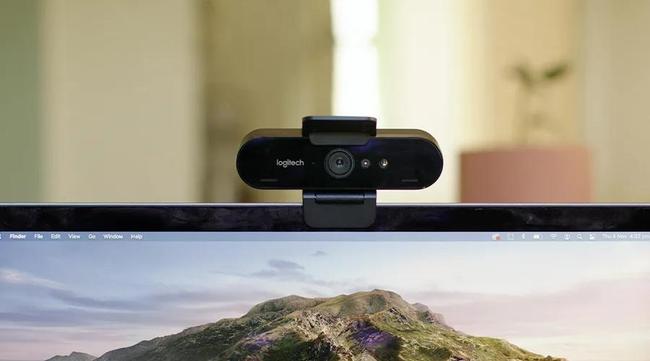
Image: Tobias Venus/Finder
Finder Score:
Pros
- Great in any lighting situation
- Impressive list of specs
- Compatible with Windows Hello
Cons
- Plastic privacy flap and mount feel like afterthoughts
- 4K and high frame rates are unnecessary
- Expensive
Buy now
Logitech's BRIO 4K Ultra HD Pro webcam brings with it a lot of image flexibility, which is exactly what you'd expect out of any 4K-capable webcam.
4K is a big step up from what you’ll get out of the typical laptop webcam. And while that is somewhat reflected in the BRIO's asking price, it's also a design that's won plaudits from reviewers – including right here at Finder – for its overall visual quality.
The Logitech BRIO 4K Ultra HD Pro Webcam also impressed for its elegant design, which blends in nicely into professional environments and works well clipped to the top of a laptop screen. One small downside here is that while it does feature a privacy flap if you're nervous, many reviewers noted that this part felt a little cheap and liable to break.
Video quality from the Logitech BRIO 4K Ultra HD Pro Webcam was excellent with a range of video modes available depending on your needs. Reviewers also noted that the pickup from its microphones was very good as well. Finally, if you're after a webcam with security in mind, the BRIO is also compatible with Windows Hello for easy unlocking of your laptop on the go.
You can read our full Logitech Brio 4K Ultra HD Pro webcam review here.
Anker PowerConf C300
Best webcam for work

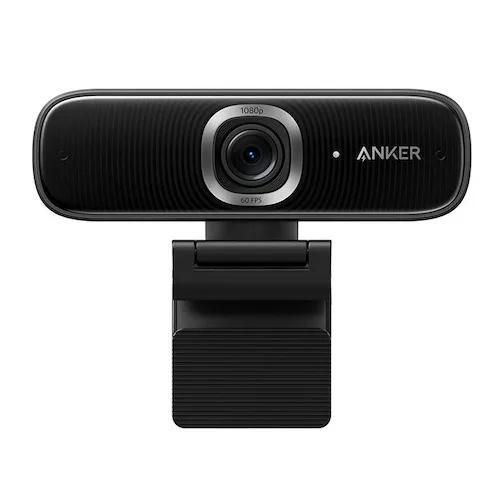
Image: Supplied/Finder
Pros
- Wide angle makes it good for group calls
- Works well in dimly lit meeting rooms
Cons
- Wide angle isn’t great if you work alone
- Pricey
Buy now
Anker's not a brand widely associated with video conferencing, but we've seen the brand associated with more unusual devices than this. The PowerConf C300 is a webcam specifically tailored towards work users thanks to its wide diagonal field of view – up to 115 degrees depending on your selection.
That means if you have a group videoconference with several staff members in the same room, you don't have to do that awkward thing where you all cluster over each other's shoulders to simply be seen.
Alongside its wide angle of view, reviewers also noted that the Anker PowerConf C300 performed better than many work-centric webcams in lower-light situations. If you've got a meeting space or conference room with a dim bulb in it, the Anker PowerConf C300 should be able to make you visible, maybe even looking good in a pinch.
What makes the Anker PowerConf C300 a good choice for group webcam work is also something of a drawback if you're a solo worker. Chances are you don't want that wider view of your home office, especially if you don't actually have a spare room for that kind of work and you're instead making do from the kitchen table. Sure, your cat is cute, but it shouldn't be seen in every work meeting.
Logitech StreamCam
Best webcam for streaming

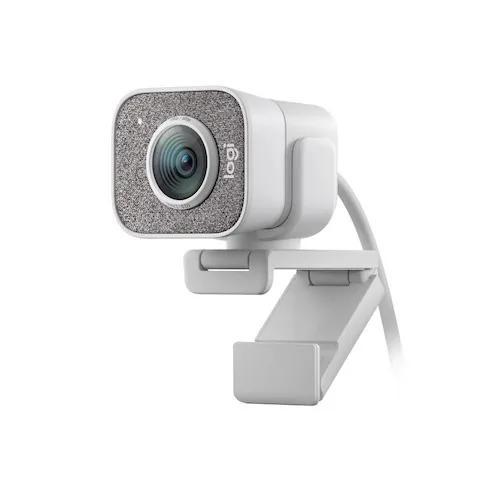
Image: Supplied/Finder
Finder Score:
Pros
- Easy to plug and play
- Decent in-built microphone
- Can be mounted in portrait or landscape
Cons
- Expensive
- Auto settings can sometimes get it wrong
- Not great in low light
Buy now
If your passion for webcams is tied to your passion for streaming – whether that's simply for fun or to make serious money as a Twitch or YouTube streamer – you need a slightly
different toolset to the folks who use it for work meetings.
That's where the Logitech StreamCam comes into its own thanks to features such as smooth 1080p recording at 60fps. In a work meeting lower frame rates are acceptable, but when you're playing to the online audience, you want visuals to be as good as they can be. There are more than a few 60fps/1080p webcams out there, but the StreamCam won applause from reviewers thanks to its delivery of that feature at a typically lower price point – though this still isn't a "cheap" webcam.
It's a wonderfully flexible webcam with support for either monitor or laptop mounting via its included mount, or to any tripod with an included clip. There's also support for vertical mounting, so if portrait mode shots for your TikTok or Instagram are what you crave, the Logitech StreamCam can deliver.
Connectivity is via USB-C, which does mean that if you're planning on connecting it to an older system that only has USB-A ports, you'll need to spend a little extra on an adaptor. Hardly a breaking point, but equally at the price the Logitech StreamCam commands, Logitech could have thrown an adaptor into the box pretty easily.
Logitech's high-end StreamCam earned a 4.2 out of 5 rating from more than 490 reviews on Google. Users applauded the webcam for its great-looking design and were impressed with its overall image quality.
Quite a few reviewers said they would have liked to see Logitech include a USB-C to USB-A adapter in the box so that those without USB-C wouldn't have to go out of their way to buy one themselves.
It was also noted by some reviewers as being not as strong as some other premium webcams in very low-light situations. If you're frequently hosting horror streams with spooky atmospheres, that could be an issue.
Today's Logitech StreamCam deals

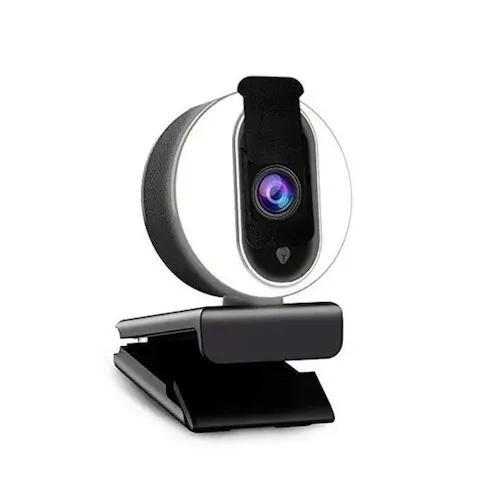
Image: Supplied/Finder
Pros
- Nicely affordable
- Good autofocus
Cons
- Only does 1080p 30fps
- No zoom, pan or tilt functionality
Buy now
There's something to be said for webcams with their own lighting. While you can get a wider array of lighting set-ups by using a distinct light, having it built into the camera should ensure fewer issues with harsh lighting or lights that degrade actual video performance.
There are plenty of options for webcams with built-in ring-style lights, but NexiGo's N930E 1080P Webcam takes that prize thanks to a combination of good reviewed light quality and a highly competitive price point.
If you're just starting out with streaming or just want a webcam that'll make you look a little better to the boss when you're working from home, including a light with multiple light settings should ensure that you always look your best no matter the circumstances.
Reviewers also liked that the NexiGo N930E 1080P Webcam includes a physical privacy shutter – not always a feature at this price point – but they did note that it wasn't as flexible on features such as automatic tilting, zooming or panning.
Save on webcams with these deals and discounts:
BlazeVideo
Up to 50% off Trail Camera
Enjoy huge savings on trail cameras at BlazeVideo. Valid for a limited time only. Exclusions, T&Cs apply.
Temu
Up to 48% off cameras and accessories
Enjoy up to 48% off cameras and photo accessories at Temu until supplies last. T&Cs apply.
Kogan
$10 off Drones & Action Cameras
Valid for a limited time only. Exclusions, T&Cs apply.
Camera House
FREE shipping on orders over $49
Get FREE shipping on orders over $49 at Camera House. T&Cs apply.
CameraPro
$10 shipping flat rate
Valid for a limited time only. T&Cs apply.
Arlo
FREE shipping on orders over $100
Enjoy FREE shipping on security cameras orders over $100 at Arlo. Cameras typically offer HD or 4K video resolution. Features night vision and wide-angle views. T&Cs apply.
Swann Communications
Up to 25% off the best Wi-Fi cameras
Shop the best Wi-Fi cameras now for up to 25% off at Swann Communications. While stocks last. T&Cs apply.
CameraPro
Sale items from just $9
Shop selected items from Canon, Nikon, Fujifilm and more from just $9 at CameraPro. T&Cs apply.
CameraPro
Priority delivery for just $10
Enjoy priority delivery Australia-wide for just $10 at CameraPro. T&Cs apply.
Methodology


- We looked at 34 webcams from a bunch of respected and lesser-known manufacturers to pick out the best options to improve your video calls, streams and content creation.
- Each webcam was chosen based on careful analysis of both professional reviews and consumer opinion as well as current pricing trends and feature sets.
- The products on this list are chosen by our editorial team and are not selected based on commercial relationships.
Why you can trust our picks
There are many webcam choices for you to pick from right now, covering every single budget and need. We considered webcams from the following manufacturers for this list:
- Anker
- Creative
- Dell
- Elgato
- Insta360
- JLab
- Logitech
- Mevo
- Nexigo
- Osbot
- Poly
- Razer
We selected models that were available for Australians to buy either online or in retail stores at the time of putting this guide together. Availability for select models can always vary over time, but we've tried our best to ensure that these are webcams that you can actually buy, not just get frustrated trying to source.
We chose each webcam based on how well it met the needs of each category group, taking into consideration not only base specifications such as image quality, lighting and frame rate but also reviewer notes on the actual end quality of each webcam. That's a measure of its output and its build quality. There's little point in buying a webcam that will break easily, after all.
Frequently asked questions
Is an external webcam better than a built-in laptop camera?
If you only make a few video calls or need to attend very infrequent meetings, you may find that the basic webcam built into your laptop is enough for your needs.
If you're after performance, an external webcam is better. Many offer full HD (1080p) or 4k resolution whereas most built-in laptop cameras top out at 720p. Many webcams also include integrated microphones that will pick up your voice more smoothly than your laptop's built-in microphone could possibly manage.
Some webcams offer a wide field of view and great flexibility. You can double an external webcam's head to adjust its view, something that you can't do with a built-in laptop camera.
How do I set up my new webcam?
Installing a webcam is pretty straightforward. Turn on your computer, plug in the webcam using its USB connector and in most cases, you're ready to roll.
If that doesn't work and your operating system doesn't automatically add the drivers needed to operate your new webcam, check with the manufacturer's website for any additional software or drivers you may need to install.
How do I protect my webcam from hackers?
Keep your computer updated with the latest software to minimise any webcam security risk. You can also use a firewall to lock down your network and keep hackers at bay.
Make sure that your Wi-Fi connection is secured as well. Create a name and password that are difficult to guess and can't be easily associated with you.
Never click suspicious links sent over to you as hackers can trick you into installing malicious software using shady links to control your computer, including your webcam.
Many webcams also include privacy shutters – essentially plastic or metal shutters that close the webcam's "eye" when not in use. That can be a valuable security measure in itself – and of course, you can always go lo-fi with that approach by folding a little paper or similar over the front of your webcam when you don't need it.
Why you can trust Finder Shopping best guides


We're knowledgeable


We're comprehensive

